Check the Developer, Official Icon, and App ID
Open the Shadowrocket product page in the App Store and check the developer or seller information. It should say Shadow Launch Technology Limited. Then verify the official icon: a rocket with a blue-purple outline on a white background, matching the official icon in this site's header. Finally, check for id932747118 in the product page URL. Verify all three; do not rely on a search result's name or icon color alone. If you see a result with the same or a similar name, return to the App Store link in the getting-the-app guide and check again.
The name identifies the product, the developer identifies who published it, and the app ID identifies the specific App Store listing. Each serves a different purpose. Verify all three before reading reviews, viewing screenshots, or comparing listing descriptions. If the expected result is not visible in the store, check that you have the correct product page and storefront. Do not treat another search result as a substitute. The getting-the-app guide links to the same product page and explains the steps for that listing.
App Store Availability and Storefronts
The price, currency, and availability shown in the App Store depend on your account's storefront. Once the link opens, go by what the App Store displays on your device. If you cannot find the app, check the spelling and try opening the product page from the getting-the-app guide. If it still does not appear, check your storefront and the device compatibility details. Do not change client settings to resolve an App Store purchase issue: before installation, Global Routing, server details, and rules play no part in the purchase process.
For issues involving account region, payment methods, or App Store purchase restrictions, follow the App Store account prompts. When describing the problem, distinguish between “product page won’t open,” “payment won’t go through,” and “installation hasn’t completed after payment.” These occur at different stages and require different steps. Always refer to the App Store listing for system requirements. The home page does not specify a fixed minimum OS version, since outdated requirements could be mistaken for current purchase conditions.
One-Time Purchase vs. Proxy Service
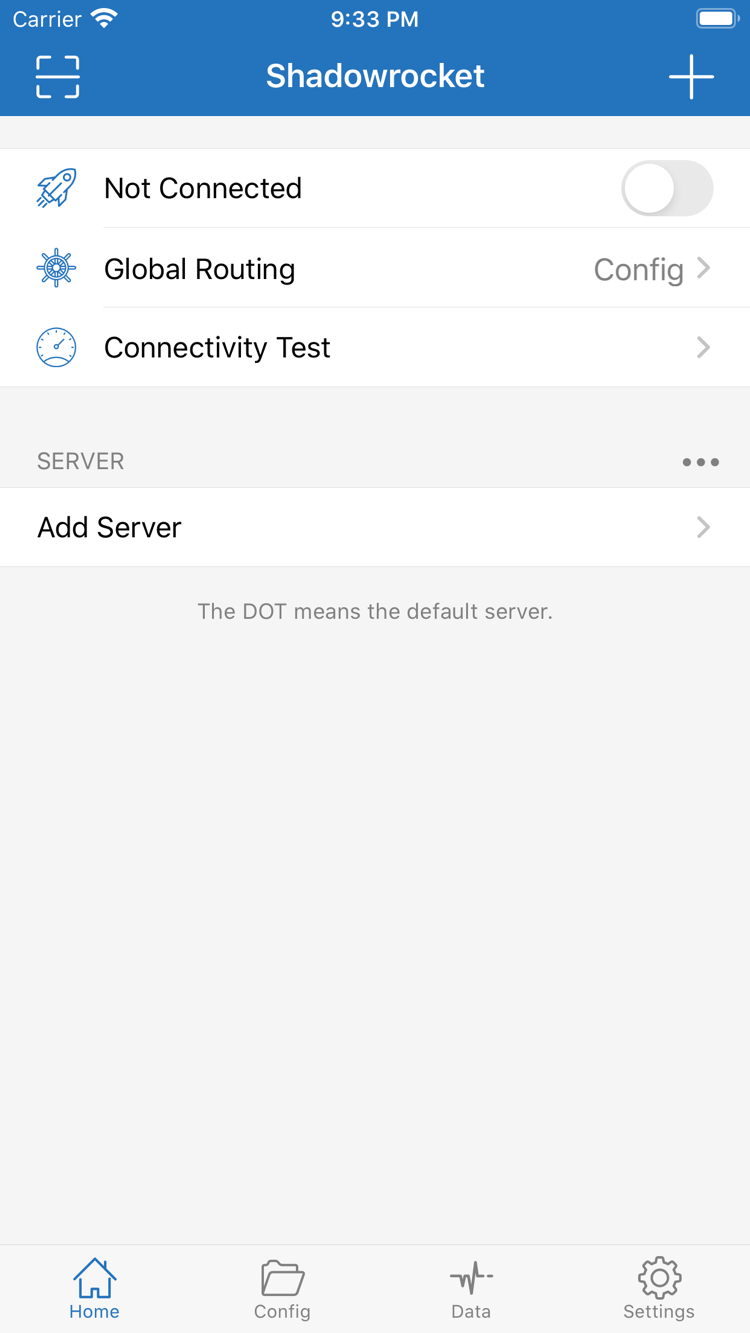
Buying the client ≠ buying a proxy plan. The one-time purchase of Shadowrocket gives you the right to use the client; it does not include servers, subscriptions, or proxy service. The US storefront price is about $2.99; other storefronts show local currency. The final amount is shown on the App Store listing and payment confirmation screen. If the SERVER list is empty after purchase, that does not mean the purchase failed. It usually means you have not imported your own server or subscription details yet.
Get subscription links from your service provider. This site does not provide servers or subscriptions; it explains how to import information you already have, check parameters, and maintain your configuration. Before importing, identify whether you have a single-server link, a QR code, or a subscription URL. A single server link adds one connection; a subscription can sync a list of servers; Config manages settings such as rules. Keeping these three types separate helps avoid repeatedly importing the same link while still not finding the rules you expect.
Restore Purchases and Set Up a New Device
When switching devices or reinstalling, sign in with the original purchasing account, find Shadowrocket in App Store purchases, and follow the store's prompts to get it again. Compatibility with your current device and purchase features such as Family Sharing are subject to the App Store listing. If the store shows a price again, first check the account you used to purchase and your purchase history. Do not assume the original purchase is invalid or pay again before checking your records.
Restoring the app is not the same as restoring its configuration. After reinstalling, check the server list, subscription status, current Config, and default server. If you use iCloud sync, wait for it to finish and verify each item. If you restore from a backup, check that the configuration still works with your current server. Finally, reconnect and verify actual access. A working setup on another device is only a reference; it does not replace checking permissions and network access on this one.
Check Configuration After Updates
Update the client through the App Store and check its update history on the product page. Before updating, keep a working copy of your configuration. Afterward, check the default server, Global Routing, and enabled Config, then test the services you commonly access. App updates, subscription updates, and configuration edits are separate operations. If you do them all at once, it is harder to identify what caused a change. For routine maintenance, make one change at a time and verify the result before moving on.
When a connection fails, record what happened before reinstalling. Confirm that your current network can reach basic services, run Connectivity Test, and check the server parameters and system time. Then review the routing mode and matched rules. If the issue started after a subscription update, check whether the default server was removed or renamed. If it began after editing rules, first revert that change. Checking the most recent change first preserves useful clues and is more effective than resetting several settings at once.